Showing posts with label Kids. Show all posts

Thursday, October 9, 2008

Extreme Tux Racer - A race simulator with... penguins!

Extreme Tux Racer

A race simulator with... penguins!

Extreme Tux Racer is an open-source downhill racing game starring Tux, the Linux mascot. It follows in the path of Tux Racer and its derivatives.

Features:
* racing game
* racing simulator
* open source game
* Tux Racer fork


After a hard day at work, you decide to relax and play a nice game on your Linux system. As you don't want anything too complex that could require a lot of attention, you decide to find a game that's simple and fun to play. Based on the fact that Tux, the penguin, is the most popular guy in the Linux world (besides Linus Torvalds, of course), you could try Extreme Tux Racer, a very popular racing simulation game where you drive... Tux! You control the popular penguin as it slides on the mountain, to catch as many herrings as possible. Also, you will have to finish the race in time, or you'll lose.
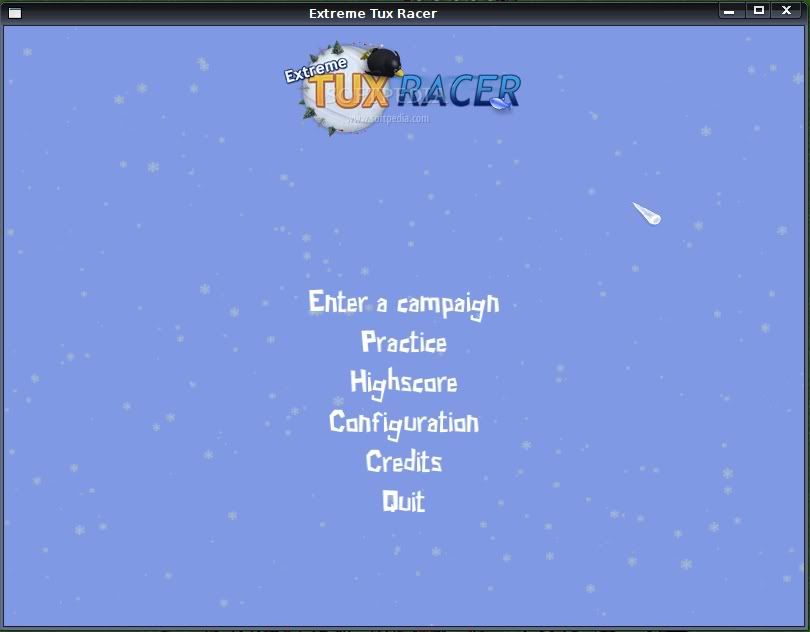
The game menu is nice, packed up with some cool things... cold as ice, I could say. The cursor is an icicle and on the background you see snowflakes falling, which will swarm around your cursor when you move it around the menu.

Speaking of the main menu, here's what you can find in it:

1. Enter a campaign
2. Practice
3. Highscore
4. Configuration
5. Credits
6. Quit
If you want to see who worked on Extreme Tux Racer, so you can enjoy the game, you should click on "Credits". This will also show you what version of ETR you're running and a short info about it. After you satisfy your curiosity about the persons behind ETR, you should go through "Configuration" and set the game to fit you. The menu is not so well organized, which I'm sure you'll also notice. For example, we have "Graphics" and "Video". It would have been nice if there was only one category for graphics. Another thing that seemed odd was the fact that the user had to select the language of the game from... "Graphics". From "Video" you can change your resolution as well as the color depth and you can enable FSAA (Full-Scene Anti-Aliasing). If you enable this option - and if your card supports it - you will enjoy a much smoother gameplay. Also, you will notice that everything looks much better after you select FSAA.
In "Audio" you can opt for sound effects and music or none of them, the bits per sample and samples per second. The "Keyboard" menu lets you select what keys to use for the actions Tux will take in the game, like turn left/right, paddle (which is an interesting feature that can help you only in some moments of the game, while in others it will make things much harder), jump (you will have to press the assigned key and hold it, then when a jump is imminent, release it and create a larger jump), trick (Tux will do a trick in mid-air) and reset (resets Tux's position back on the track).
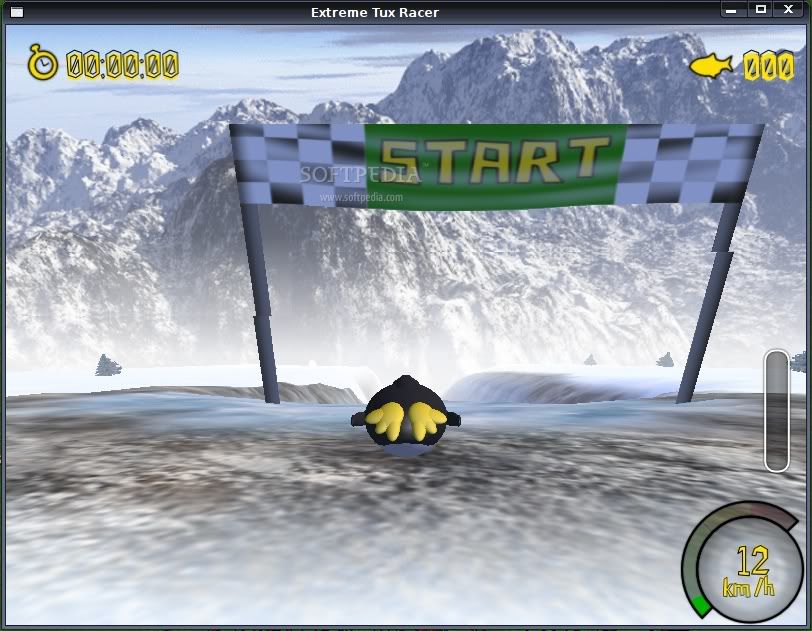
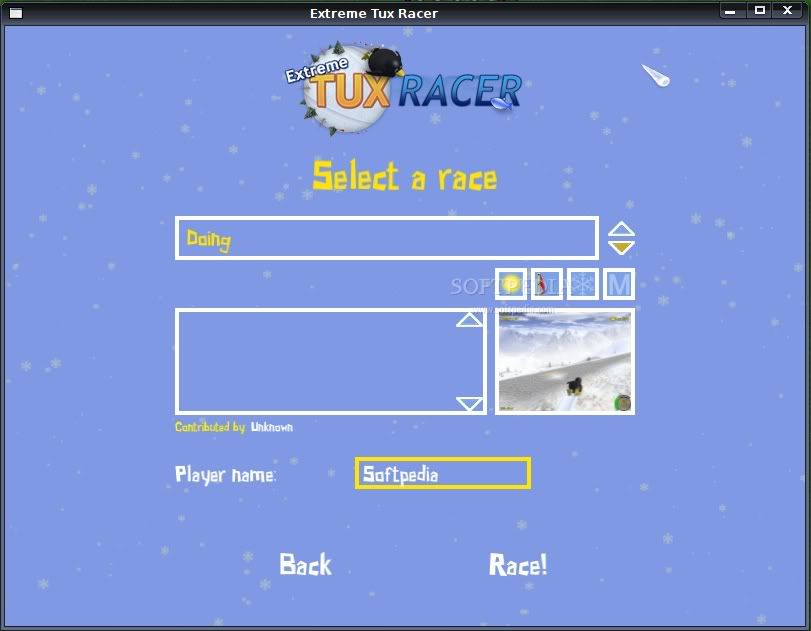
Okay, after configuring the game, it's time to play! I recommend you to start with Practice, before selecting "Enter a campaign". This way, you get a hang on how everything works in the game, and there's nothing to limit you. Also, you can test all the tracks available in the game and get used to them before you take on them. I almost forgot about the fact that you can select the way Tux will go down the slope: using a snowboard or on its own belly. It's funnier if you see it go down the slope on its belly, though. By the way, Tux looks a little bit weird, like it is made of plastic, or maybe it's something inflatable.
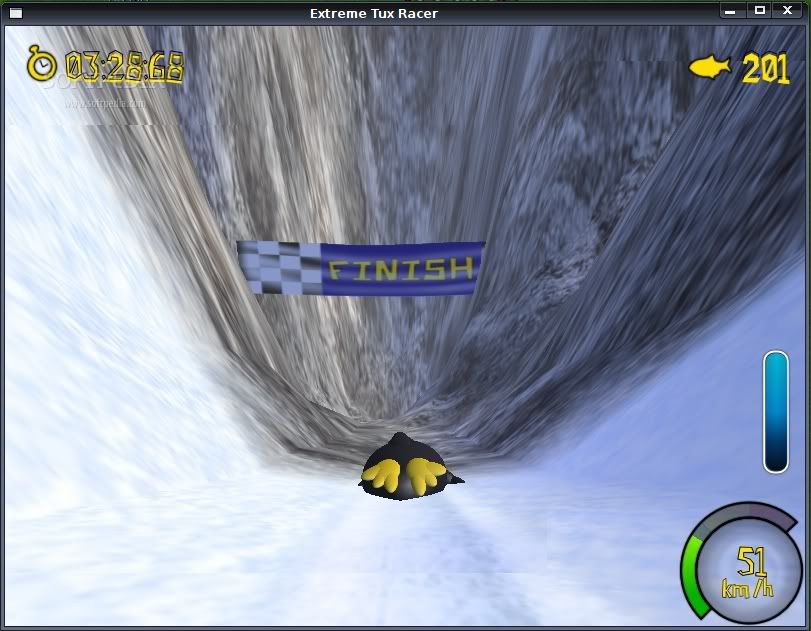
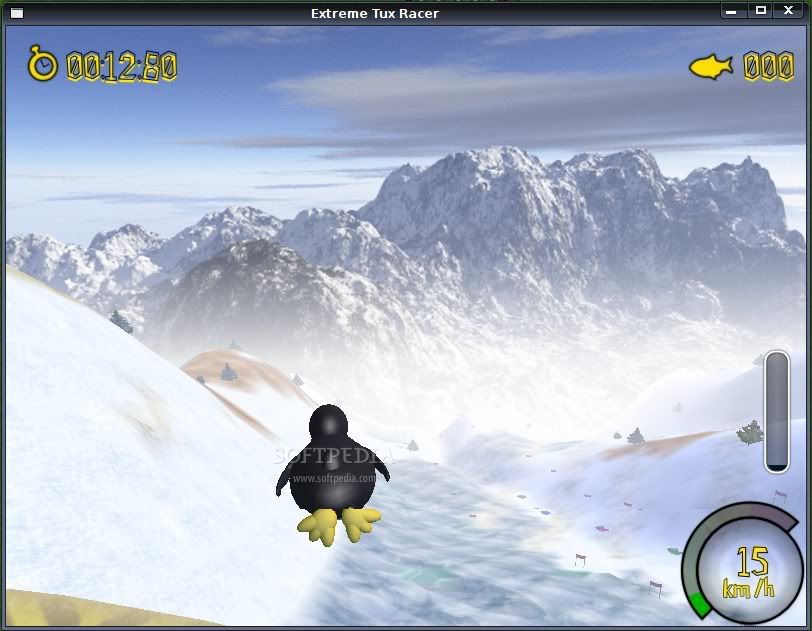
I've started practicing, so I can learn some tricks with Tux. The HUD is made up of a timer, the number of herrings you catch, a speedometer and the current race progress. I managed to get to a speed of 200 km/h, which is very fast for a fat penguin like Tux! Some big holes in the tracks did a great job in stopping me to get to the finish line, but I found a way to get past them (this is called cheating, right?). If I press "R" just before the moment I get into one of these gaps, my position is reset somewhere safe, and I can think about a way to get past the gap next time.

I think it's somewhat hard to find which track is designed for a beginner and which one is for an expert. There's nothing in the menu to select the difficulty level, but there's a way to differentiate which of the tracks are harder: those that are not available from the start of the game seem to be for experienced users. For every track, you have a limited number of tries - or lives - to complete it and advance to the next one.


The Good:

Extreme Tux Racer is one of the games that help you relax after some hard work and I think it's very good for children, mostly because there's no violence in it, and it's also funny.

The Bad:

The menu is not very organized, and Tux looks like a plastic puppet; also, when it is on the snowboard, Tux looks like the board is glued to it. I think that after playing ETR once, you get bored with it, as it is not very interactive.

The Truth:

I found out from "Credits", in the main menu, that a new version of Extreme Tux Racer is being worked on and it will be much more different than those we were used to. I can hardly wait for this version, maybe the developers will make it look and perform better. And the most important thing: increased interactivity!
Read More..

Little Wizard - A development environment for children

Little Wizard is a development environment for children.

Features:
· easy to use;
· user friendly;
· only mouse usage;
· simple to grasp.

I've always wanted to present an educational product, one intended especially for children in primary school because, that way, I would contribute to making the learning process just a tad better for some. And by better I mean more fun, with less stress associated with it and, why not, a real pleasure.

Well, now that I have this opportunity, I will tell you about the most user-friendly development environment you ever set your eyes upon, an IDE especially designed for children. Although far less powerful than the usual programming environments, Little Wizard is just what a kid needs to be introduced to, if s/he is to regard learning how a computer program is crafted as something fun.

Little Wizard's job is indeed a difficult one, and that’s mainly because of two reasons. First off, children tend to become bored extremely fast, and I'm sure we can all agree on that - so it's fair to say that you can't really make a child do something, let alone enjoy it, if that thing doesn't profoundly arouse her/his interest. Any school teacher can confirm that boredom among pupils is one of the biggest obstacles standing in the way of an effective learning experience – so, to put it simply, there has to be something that, even if harder to grasp at first, dons a very user-friendly wrapper. The second reason is that computer programming is a field that is fundamentally difficult to comprehend. I don't want to analyze here what it takes to be a skilled developer, but trust me, it takes both time and effort, and to become an expert, well, let's just say it's hard to get there.

Then, is it possible to put together these two conflicting aspects and yet come up with something that's worth anything? The answer is yes, as Little Wizard is one of the most nicely implemented educational software I have seen. Although it's relatively straightforward, having no complicated commands or too complex concepts to deal with, it's certainly not a toy. I mean, it's true that in terms of user interface it has little in common with the more technical, real development environments, being very cute, with little animations all over, and a truly well made interface. Nevertheless, it's a serious application when it comes to its offerings.

When I first started using Little Wizard and saw that it was designed to teach kids, I thought there was no need for me to waste my time reading the tutorial, as I felt confident on my small programming background to help me get started quickly. However, in the first ten minutes or so, I literally felt overwhelmed with the multitude of tabs, small pictures of a little clown (which, after a while, I realized was the actual “little wizard”) and various other aspects. I was only familiar with the math tab, which contains all the digits and operations (both the basic ones such as addition, subtraction, division and multiplication, and the slightly more advanced concatenation or logical operations), and with the loop&conditions tab, including basic clauses such as if, else, for, while, repeat-until, break and continue.

With some guilt that I could not even get how to use a children's application, I began going through the tutorial, in order to understand how to start using its full potential. The conclusion I reached was that this is a software that a teacher has to learn thoroughly, and only afterwards can he introduce it to his pupils, because it does not offer any documentation whatsoever about how a computer program is structured, its core concepts and fundamental issues. It skips all that, and begins by briefly describing the program UI, and then gets right to how the commands are used. For me, and for anyone who has written and complied a program at least once, it was really easy. However, I think that. for someone who is new at this, getting used to it would be a real problem. Therefore, for those who want to start learning programming on their own, I have to recommend first a reading on the fundamental issues.

I may have been a little to drastic above, but that’s because I suppose no one with absolutely no background in this area would venture using Little Wizard, so it will probably be a good experience for most that do. Now, let's see exactly what this tool is about and in what circumstances it may prove to be the optimum choice.

Little Wizard is a drag and drop development environment with a top priority to be as eye-pleasing and user-friendly, while offering as many of the facilities of a regular IDE as possible. The first thing you should know right from the start is that you'll probably never have to touch the keyboard, as everything you add to the program is done solely by using the mouse. For example, if you want to make a short loop to print all the numbers between 1 and 10, you have to first select a variable and assign it the value of 1, then drag down a loop clause (like while or for), open a logical block (a curly bracket, like so {), print the variable's value (which is done here by putting the create wand and the variable name next to each other), increment the variable (x = x + 1), and then close the logical block (}). Of course, there are other ways to do this, by using more specialized clauses, such as for, which increments the variable automatically with whichever step you desire (not necessarily 1 like in the previous example).

The Good

As I said before, Little Wizard has a real tough mission, that of combining a kid's need for something s/he deems intriguing, with the tedious work of studying computer programming. From my point of view, which might not be the most accurate one, it does a pretty good job at it, having a nice childish interface and various other features that kids can relate to.

The Bad

Having to constantly drag and drop figures out of the palette and into the program grid, especially if you want to create a larger program, may become a little tiring after a while. However, the most bugging aspect is removing pieces of program, as you have to select each separately, and drag it upwards in the palette. Also, there is no tool for selecting more than one item at a time, so to modify a program, you have to replace each item with the new one. This can definitely be seen as a downside since, when programming is first learnt, changes occur very often with your program as you experiment with various techniques and code statements.

The Truth

Overall, Little Wizard is an application that may prove to be satisfying for many school teachers in search for something additional to the main course (I can't say with certainty because I haven't had the opportunity to see it in real action, meaning, with kids working in it). I for one have enjoyed it because Little Wizard allows you to do a little more than just programming – an aspect I intentionally left out for you to experiment on your own. Have fun!

Source : Softpedia
javascript:void(0)
Read More..

Sunday, September 28, 2008

Pingus a free Lemmings clone for GNU/Linux and Windows

Pingus a free Lemmings clone for GNU/Linux and Windows

We all need to relax from time to time, as it has been scientifically proved that regular breaks increase productivity, as well as our general wellbeing. This is one of the reasons I decided to present what in my opinion stands for an efficient, brain cooling experience. Pingus is a lemmings-like puzzle game, which, although based on a well-known idea, namely that of combining certain abilities to attain a goal, manages to keep you on your seat in front of the computer, scenario after scenario.


For those of you who don't really know what the lemmings-like game genre is, I'll give a short description, so that when you start playing the game, you will have a general idea of what you have to do. Basically, you have a specific number of penguins from which you have to save some in order to pass the mission. Penguins start showing up in a certain point of the map, and you have to carefully guide them until they reach the exit. For that, every particular mission has certain abilities that you can equip the penguins with, in order to pass over obstacles that stand the way. For instance, you may sometimes need to equip your penguins with floaters (little propellers mounted on their head), so that when they reach a gap, they gently land on the ground, and not hit it at great speed and die. You can also make the penguins jump over gaps to reach a specific point, or better, build a bridge over the gap and never have to worry about making sure every penguin jumps over.

Other situations, like when the exit is lower than the area where the penguins are generated and there's no way to jump or land with a floater, only leave the possibility of digging. Digging is more special in Pingus, as there are practically four kinds of possibilities of doing it. The first is pretty straightforward, simply called digger, transforming a penguin into a cute, very well equipped drill worker that makes a vertical hole from the point where it is standing until there's no soil left to go through, or it reaches a piece of steel. Another possibility is the miner ability, very similar to the digger, but with a difference in terms of direction, as the miner creates not a vertical pathway, but one situated on a 45-degree angle relative to the vertical axis.

The basher is the third ability to allow the creation of tunnels in the ground for the penguin to pass through. Just in case you haven't guessed it already, it allows the penguin to dig the tunnel horizontally, starting from the point where it is at when you equip it with this ability, and ending either on the other side, with the penguin safe and sound, or stopping when reaching steel. The forth and final way of clearing obstacles is also the hardest to master, because it differs fundamentally from the first three. The name is bomber, and it pretty much says all about its purpose; when you select the bomber ability and equip a penguin with it, it doesn't explode right away, but instead a timer is triggered and, when it runs out, boom! This is an explicit sacrifice ability, as there is no way to save the penguin after you make it a bomber. You might think of it as cruel but, trust me, there are cases when there is no other way to complete the mission than by using one or several bombers.

There are other abilities as well, but I'd like to let you discover them and try to use their functionality in an efficient manner. However, there is one last comment I want to make on them. Every time you don't know how to resolve a given scenario, try to think of how you could integrate all the available abilities because, most often than not, the key ability is not the most obvious one.

The graphics of Pingus is satisfying but, given that it's a 2D game designed more for thinking than for being pleasing on the eye, it can be deemed quite good. The entertaining aspect here comes not from superb landscapes or appealing effects, but from the contentment you feel when you finish a mission. Another thing regarding the graphical aspect I’d like to note is the animation used for penguins equipped with a certain ability, the floater being my favorite one.

The Good

I am impressed with how such a simple, 2D game could keep me up until 2 in the morning, therefore I cannot but accept that either I'm too competitive to give up, or the game was too good. Seriously now, it's indeed a great game, so I recommend it for relaxing, granted you don't become obsessed with it.

The Bad

There would be much to state here if I were to say all the things that I personally would change, but that's not important, since Pingus is a very good game as it is. One thing I must say, though, and that is that there's a drastic shortage of levels. There are only twenty so levels on the Tutorial island (which are quite easy and, therefore, don't count as genuine levels) and eight Halloween maps. Maybe the developer could be kind enough to provide some new ones, or convert some of the levels in older versions to the new format.

The Truth

It has some minor, barely visible flaws, and a major downfall - too few levels, in my opinion. On the other hand, if you take the time to complete a scenario (not the Tutorial Island, but the challenging ones in Halloween), I'm sure you'll want to jump right ahead to the next map and try it out. I wish you all a good leadership over the penguins!

Source : Softpedia
Read More..