Sage
Does the hard math for you!
Sage is a free mathematical software, released under the GPL license.Features:
* Includes a huge range of mathematics functions
* Easy handling of most mathematical software based on Python
* Represents an alternative to Magma, Maple, Mathematica, and Matlab
If you are involved in some activity or another that occasionally requires you to make fast calculations in fields such as geometry, algebra, number theory or anything else related to these, it may be worth your while to try out Sage, an open source, free math software. It could prove to be just the tool you needed if you are working on a team project, as this program places great stress on collaboration and openness, therefore being a great teaching or training software.
I must admit that I was never a math genius in school, but I did pretty well, and almost effortlessly, with the concepts that were mandatory to finish the courses. Maybe that's one of the reasons why I was lured to see what this program was about, being curious to find out how much knowledge I still had after a few years of no mathematical quest whatsoever. Being based on Python, I felt a little more confident that the migration to Sage would not be too shocking, as I had just finished reading a tutorial about this high-level language.
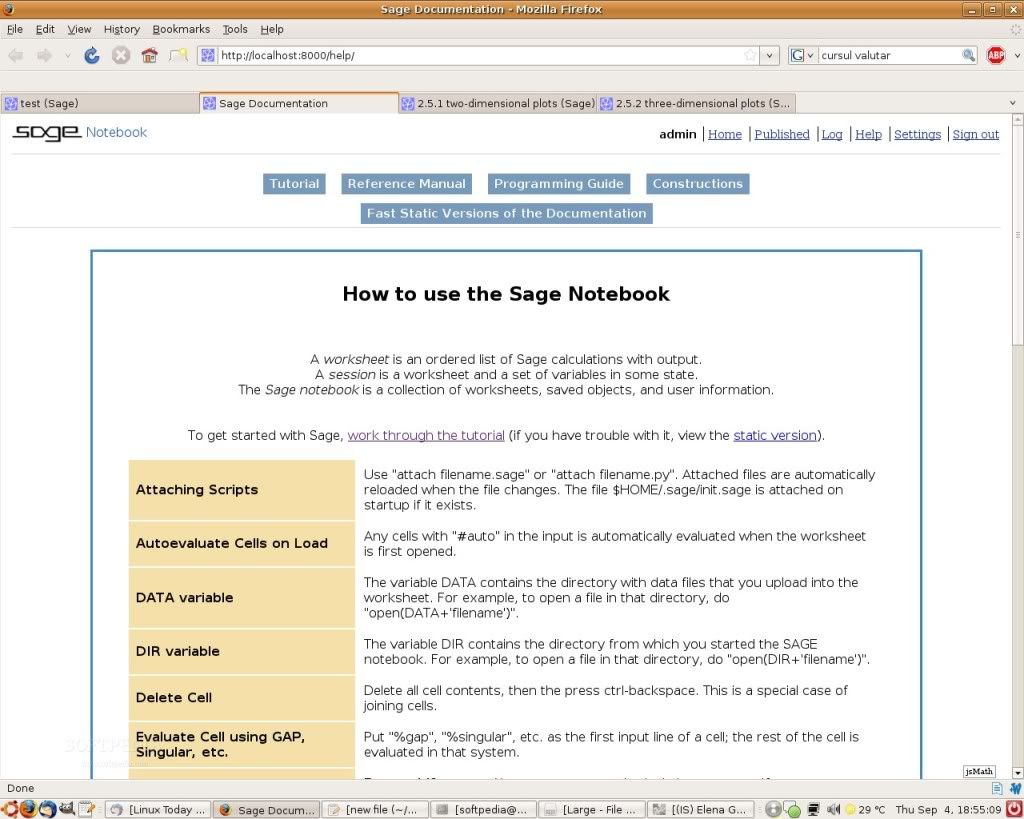 After I installed the program, I was a little surprised to discover that it didn’t have a regular editor, using instead the local web browser to load its interface. After a fresh IDE install, I have made a personal habit out of verifying what documentation is provided and, in this case, I cannot but praise Sage for delivering such a vast collection of helpful material, from which I'd like to single out a very good tutorial and a complete reference manual. The best way to get started is to create a new worksheet (you'll see the button for that right after Sage loads in your browser), and then go to Help -> Tutorial, at which point, a new tab with the Sage tutorial becomes available. Now, you can start reading and testing any command you find interesting in the worksheet.
  I decided to try out the tutorial myself because it did not seem to be very long and I thought it would be best to take a general look at what this program could do before I started exploring it in a more detailed manner. As I browsed the tutorial, I simply could not believe how many functions were provided and how well they were explained. Of course, for a non-math person, it would be rather hard to grasp that, for example, diff(sin(x)) = cos(x) or diff(x^2) = 2*x, but I think that, with a basic knowledge, there should be no problem getting through this tutorial very fast and without any headaches. Besides, it is a software aimed for a particular purpose, which addresses a specific user base, therefore we have to judge it from one of these users' perspective. In other words, it doesn't teach you math - you are supposed to have at least a general idea of it for this software to be of any real use to you.
 I cannot depict Sage's entire functionality here, for reasons that are easy to understand, one of the most obvious being the fact that a tutorial is already available, as well as lots of additional information, as soon as you finish installing the program. I merely intend to point out some of the simpler traits I found useful and interesting, and which could come in handy in many situations. I do not presume to give a decent, documented opinion on Sage's expertise areas, which require you have a solid understanding of advanced math, like number theory, some parts of linear algebra, elliptic curves, Dirichlet characters, modular forms, and more. There are, however, a few functions that can really be useful, and about which I'd like to tell you a few words. But, first things first, let us get the general idea of the program, before moving ahead to exploring its capabilities.
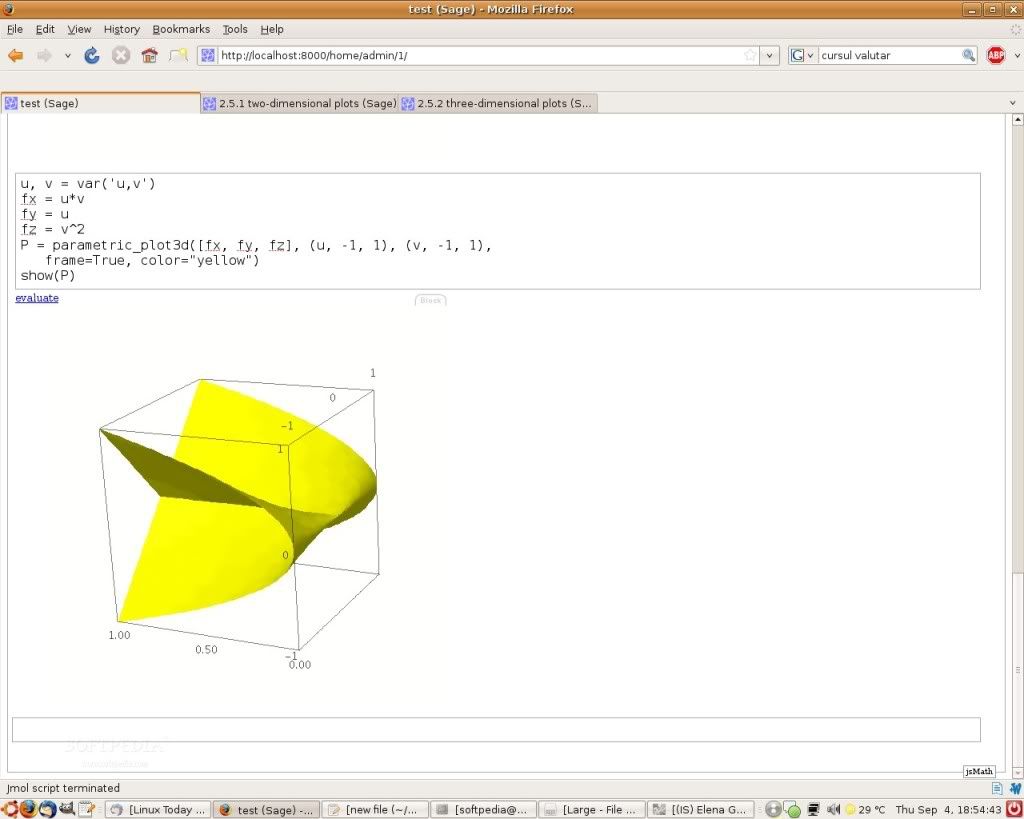
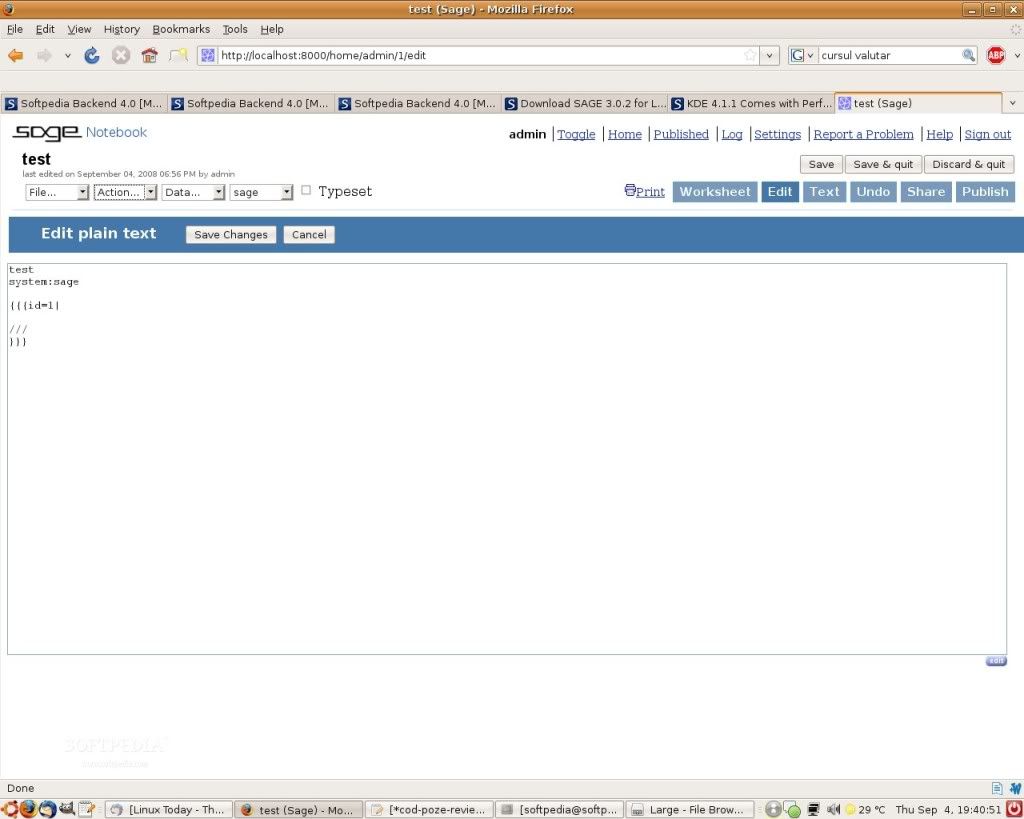 The interface is, in my opinion, one of the most important aspects of an IDE because it directly influences the developer's productivity and handling. If the interface provides intuitive and easy to learn and use functionality, it's easy for the IDE to become a popular one. I've stated my thoughts on this because I want to give an extra reason as to why I think this program comes with a very interesting and, at the same time, useful interface. The main trait is workspace organization, which lets the user handle files with great ease and in such as manner as to need just a minor amount of time to get familiar with. Like Python, Sage is a scripting language, so you have the two well-known possibilities of writing scripts, or using the interactive shell. The shell is organized in worksheets, which resemble a source file of a compiled language, but the difference is that you can evaluate what you wrote at any given moment. A small example is in order here, I know, so here it is.
Let's say that you have an equation, and you obviously want to solve it. So, take a few moments and think how you would do it in C or Java. Of course, it's certainly possible to write a simple program that can do the job in either of the two languages mentioned. But it takes some time, doesn't it? That is, time you don't have to dispose of because you need results rapidly. Well, with Sage, solving equations, systems of equations or differential equations is absolutely no trouble. Now, back to the example, let’s suppose you have the equation x^2 - x - 20 = 0; the biggest power of x is 2, so there are going to be 2 valid solutions for x as well. All you have to do in order to generate the desired output is to declare a variable and then apply the solve function on the equation created with that variable. That sounds a bit harder than it actually is, but the code is really simple: var('x'), and then solve(x^2 - x - 20, x). After you click on evaluate or press Shift-Enter, the following output will appear: [x == 5, x == -4], representing the solutions for our equation.
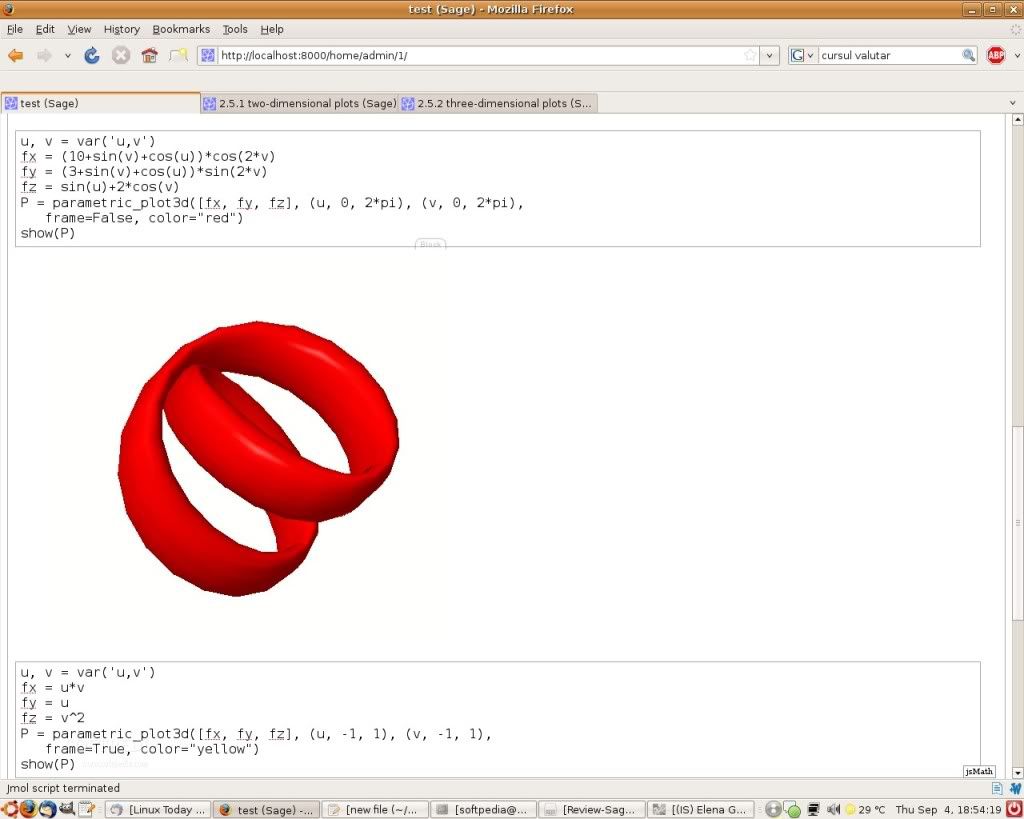 The thing I tried out for a pretty long time and that I honestly enjoyed very much was plotting. For those of you (experts, please don’t take this as an insult) who have no idea what this is, plotting is used to give a graphical representation to a mathematical function, with the help of 2 orthogonal axes for 2D plots and 3 axes for 3D plots, respectively. I just wish I had this tool when I was in high school or at least during my first year of college because, surely, it would have made a difference. However, the idea that you get to benefit from it makes me forget about not having it when I mostly needed it, because at least now I know that this tool, the plotting, will certainly make life easier for you. Even more, you could even recommend it to your teacher, if you're still in school. It makes it possible for you to draw the plot of any given function, be it linear, polynomial, exponential, logarithmic, factorial, or any combination you could think of. Then, you can even save the output as a PNG image in a file for later reference, the quality of the image being more than satisfactory. Even more, you have parametric plots that are a little more complex but which, when applied in 3D geometry, can turn into real works of art – a few examples being provided in the tutorial as well.
The Good:
I believe I already made it clear which are the things Sage excels at, but a short summing up would be in order at this point. First, it's a completely capable IDE that can help you in various ways; secondly, it has an intuitive interface and, last but certainly not least, it comes with a well written documentation.
The Bad:
Other than the fact that its most advanced functions are truly inaccessible to someone who doesn't have the right academic background, I didn't find anything not to my liking. May I remind you that I tried as best as I could to view this software from the perspective of someone who had at least a general idea of the matter.
The Truth:
To conclude, I'd say that this software is suited to meet numerous needs, and not just those related to math and school. It may very well be used, for instance, to satisfy one's curiosity regarding a particular aspect, or it could be a great help for graphical developers who need a quick look at a certain function's 3D plot.
Source : Softpedia.net
Read More..


 Site Feed
